Concepts
Everything in Wygard sits in four levels: project → website → page type → test. The breadcrumb at the top of every screen shows where you are, for example Projects › Acme › acme.com › Category.
Projects
A project groups websites that belong together, typically one client or one brand. The Projects screen lists all your projects with their status, the number of websites and the number of tests.
Each project has its own settings: name, alert email addresses, user agent, crawl frequency and rendering type. Open them from the ⋮ menu next to the project, Project settings.
Websites
A website is one domain you monitor, for example https://www.example.com/. Open a project to see its websites. For each one you see the status, the URL, the number of pages and tests, and the time of the last run.
The ⋮ menu of a website offers:
- Website settings — name, user agent, crawl frequency, rendering type and the website-level tests.
- Run all tests — runs every test of the website outside the regular schedule.
- Delete
The ⓘ icon next to the last-run time shows when the next run is scheduled.
Page types
A page type is one URL that represents a template of your site: Homepage, Category, Product, Article. Templates are where most silent breakages come from. A theme update drops the canonical from every product page at once, so watching one product page is enough to catch it.
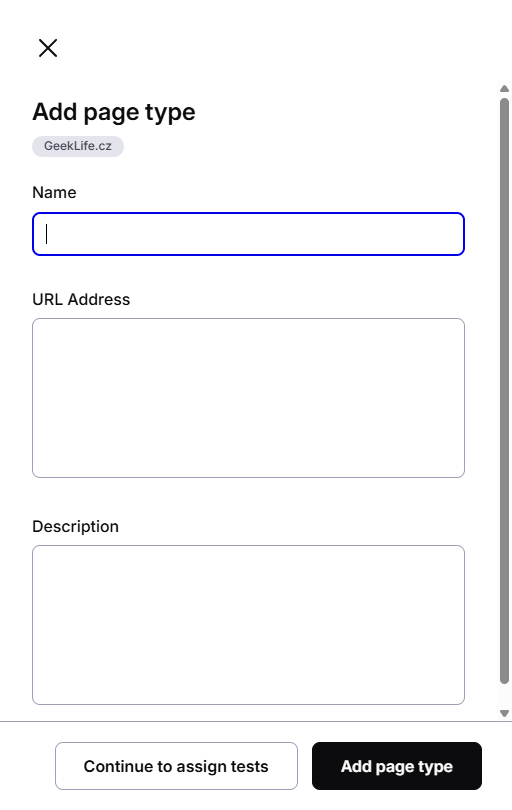
Open a website and switch the view from Show tests to Show page types to list them. Each page type has a name, a URL and an optional description. Add a new one with + Add → Page type. Continue to assign tests saves it and lets you pick its tests right away.
The ⋮ menu of a page type offers Page settings, Mute notifications, Pause, Run all tests and Delete. These act on all tests of that page type together.
Tests
A test watches one thing and compares what it finds with what you expect. Wygard has two kinds:
| Kind | What it watches | Examples |
|---|---|---|
| URL test | One element on the URL of a page type | H1, Canonical, Meta robots, Meta title, Status code |
| Web test | A resource of the whole website | Robots, Site map, URL Duplicity Checker |
Every URL test stores a desired value, the value you expect, and after each run the found value, what the crawler actually saw. When they don't match according to the test's match type, the test fails and you get alerted. The found value also shows the HTTP status code the page returned.
Add URL tests to page types with + Add → Add test(s): pick the page types, then tick the default tests or choose custom tests. Status code is always included. Web tests are switched on and off in Website settings.
A test shows one of two states: Success or Error. The website, page type and project show Error as soon as one of their tests fails, together with the number of tests.
For what a single test checks, see Tests. To change what a test expects, see Editing a test.
Test library
Test library in the left menu lists every test you can add: the default tests and your custom tests. For each test you see how it reads the page (CSS, Regex or XPath) and the rule it uses, for example //h1 for the H1 test. Add custom test creates your own test with its own selector.