Editing a test
Every URL test compares a found value with a desired value. When the page legitimately changes, or when you want the test to be stricter or looser, you adjust the test instead of deleting it.
Open a test
In the list of tests (on a website, a page type or the Projects screen), click the pencil icon in the row. A panel opens on the right.
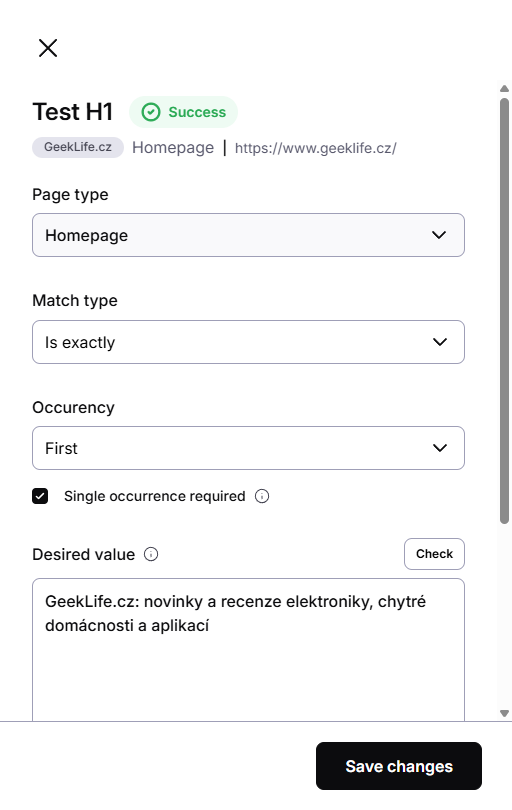
The header shows the test name, its current state, and the website, page type and URL it runs on.
Fields
Page type
The page type the test runs on. Pick a different one to move the test to another URL of the same website.
Match type
How the found value is compared with the desired value:
| Match type | The test passes when… |
|---|---|
| Is exactly | the found value is identical to the desired value |
| Is not exactly | the found value differs from the desired value |
| Containing | the found value contains the desired value |
| Not containing | the found value doesn't contain the desired value |
| Does exist | the element is on the page, whatever its value |
| Does not exist | the element is missing from the page |
Is exactly is the strictest choice and suits elements that should never change silently: canonical, meta robots, H1. Containing suits values that legitimately change but must keep a stable part, for example a title that always ends with your brand name.
Occurrence
Which element the test reads when the page has more than one: First, Last, All or Custom.
Single occurrence required
When ticked, the test fails if the element appears on the page more than once, even if the value matches. Leave it ticked for elements that must be unique, such as the canonical, the title or the H1.
Desired value
The value the test expects. Edit it when the page changed on purpose, then click Save changes.
Found value
What the crawler found on the last run, with the time of that run. It is read-only. Run test checks the page again outside the regular schedule.
Other actions on a test
The ⋮ menu in the test row offers:
- Set found value as desired — shown when a test fails. Adopts what the crawler found as the new desired value. Use it when the change on your site was intended.
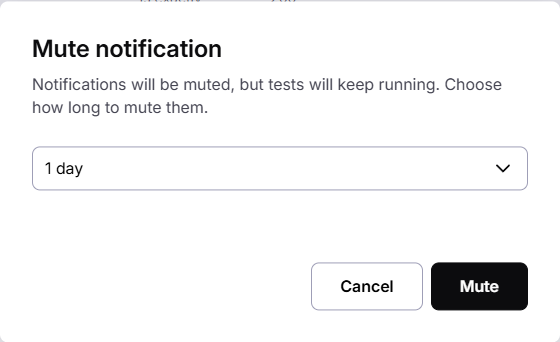
- Mute notification — the test keeps running, but you get no alerts for 1 day, 3 days, 1 week, or a custom number of days.
- Pause — the test stops running and collects no data until you resume it.
- Run test — runs the test outside the regular schedule.
- Show history — opens the history of changes for the test.
- Delete — removes the test and its history. To confirm, type
DELETEinto the field. This can't be undone.
The Status code test can't be deleted. Every URL needs it, so Wygard keeps it on.
Acting on several tests at once
Tick the checkboxes of several rows. A bar appears at the bottom of the list with Set found value as desired, Mute, Pause and Delete for all selected tests.
Test history
Show history lists the moments that matter for one test:
- Changed — someone edited the desired value. The row shows the new value.
- Error — a run failed. The row shows the desired and the found value at that moment.
Runs that passed are not listed, so the history stays short and shows only what needs your attention.